Submit an Expense
Expenses are submitted from the Klear employee app at localhost:3000 (or your company's Klear URL).
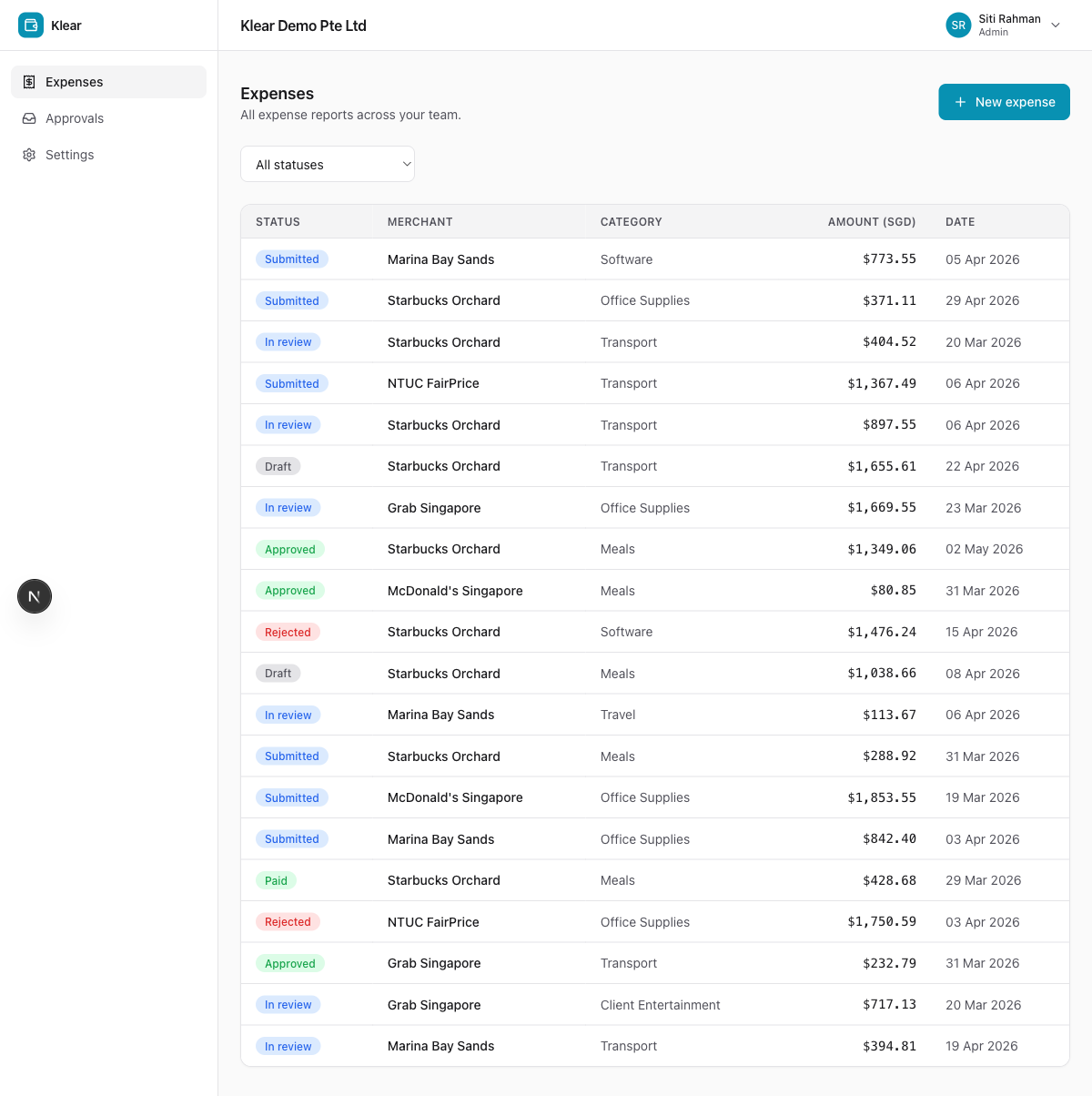
Create a new expense
- Click + New expense
- Fill in the required fields:
- Merchant — who you paid (e.g. Grab Singapore)
- Amount — in SGD or original currency
- Date — the transaction date (not the date you're filing)
- Category — Meals, Travel, Software, Transport, Office Supplies, Client Entertainment, etc.
- Attach a receipt (required for expenses over SGD 50)
- Add any notes for your approver
GST auto-assignment
Klear automatically assigns the correct GST tax code based on the category and merchant. You can override it if needed. See GST Tax Codes for details.
Policy checks
Before you can submit, Klear checks the expense against active policies:
- Soft flags (orange warning) — you can still submit but your approver will see the flag
- Hard blocks (red error) — you must resolve the issue before submitting (e.g. attach a missing receipt)
Save as draft
Click Save draft to save your work and come back later. Drafts are not visible to approvers until submitted.
Submit
Click Submit to send the expense into the approval chain. You will receive a confirmation and can track progress from the Expenses list.
tip
Submit expenses within 60 days of the transaction date. Older expenses trigger a policy flag and may be blocked.