Expense Categories
Expense categories let you classify spend so it can be tracked in reports, evaluated by policies, and summarised on employee dashboards. Admins can add or remove categories at any time without a system update.
Default categories
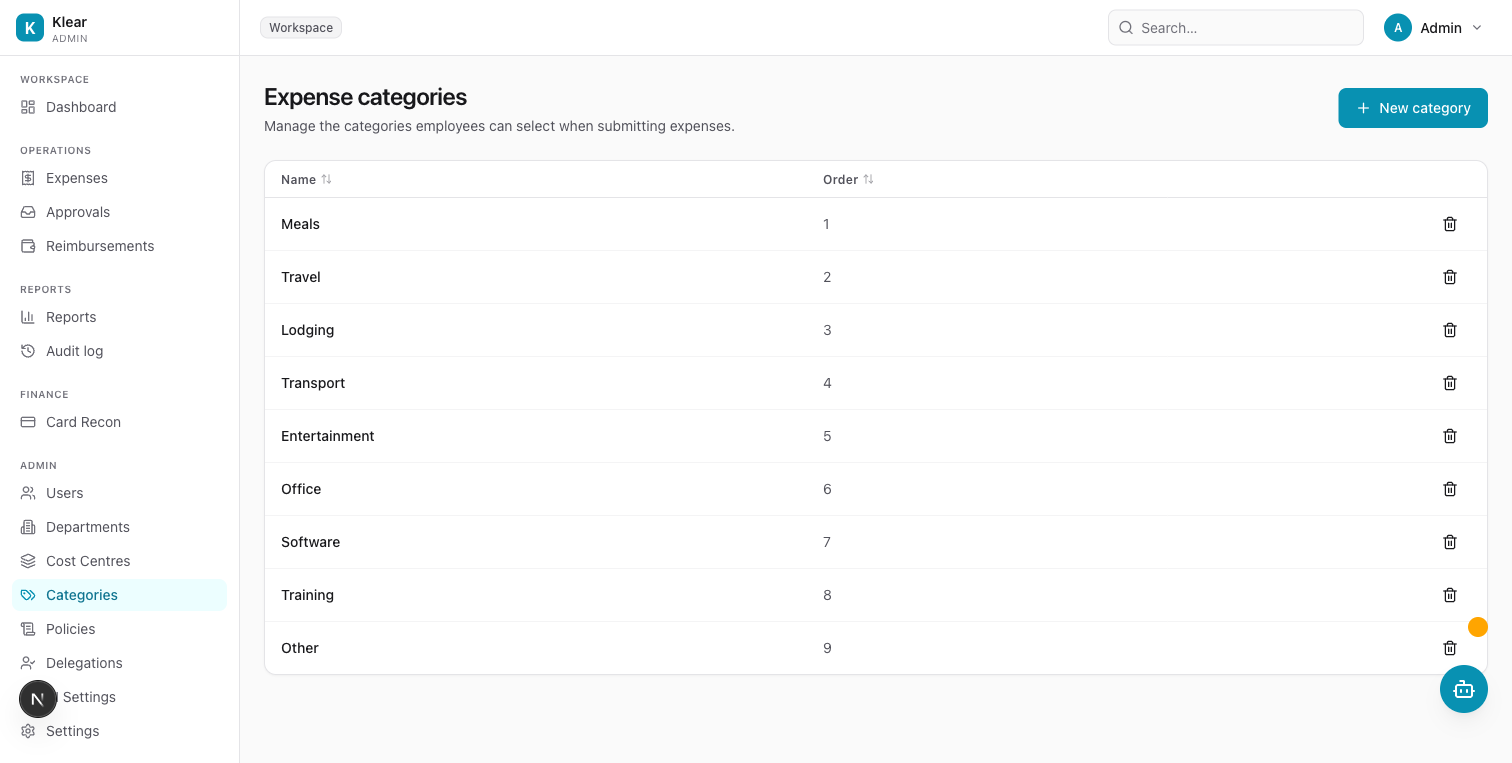
Every new workspace starts with these categories:
| Category | Typical use |
|---|---|
| Meals | Food and beverages for business purposes |
| Travel | Flights, long-distance ground transport |
| Lodging | Hotels and short-term accommodation |
| Transport | Taxis, ride-hailing, MRT, buses |
| Entertainment | Client or team entertainment |
| Office | Stationery, printing, small equipment |
| Software | SaaS subscriptions, licences |
| Training | Courses, conferences, certifications |
| Other | Anything that doesn't fit the above |
Managing categories
Navigate to Admin → Categories in the sidebar.
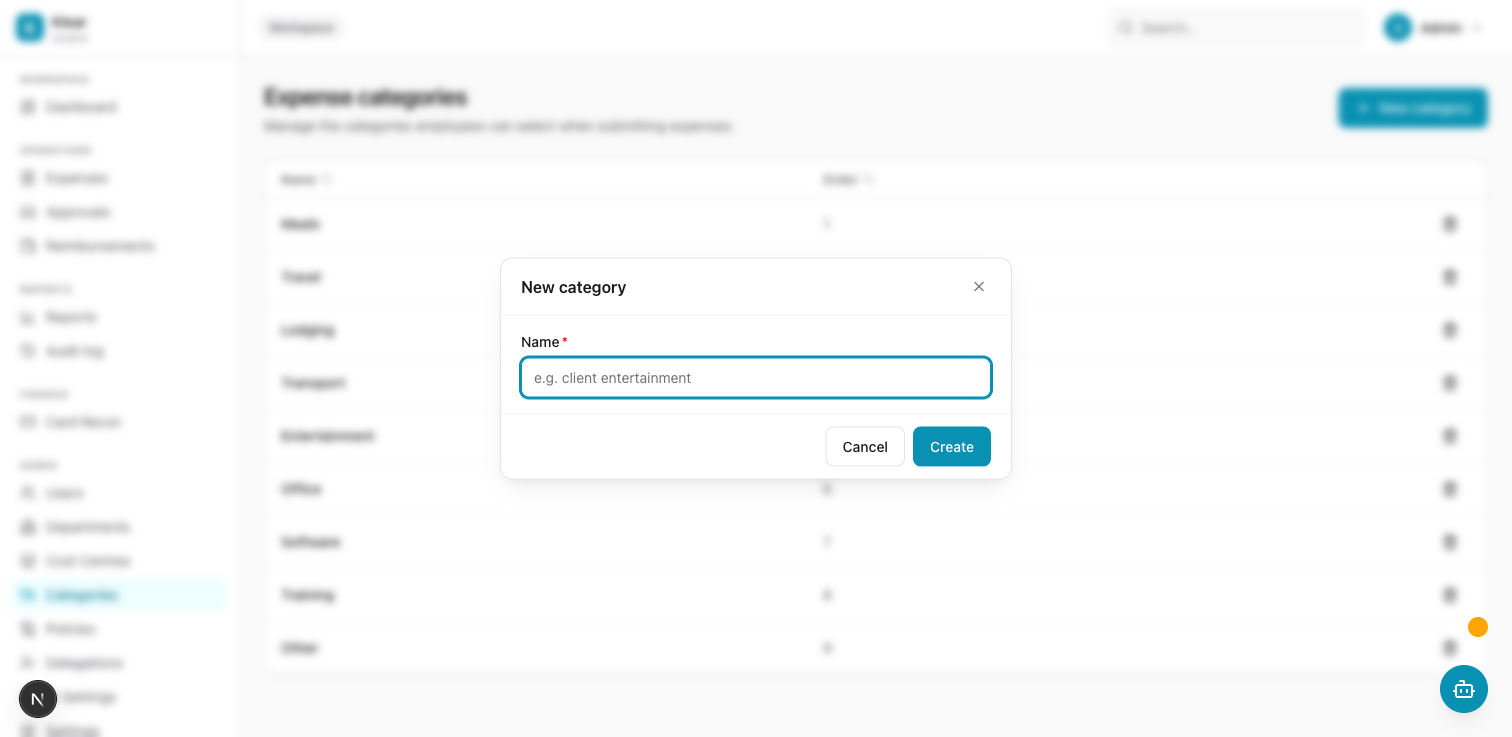
Add a category
- Click New category.
- Enter a name (e.g. Client Gifts).
- Click Create.
The category is immediately available in the employee expense form and the web app.
Delete a category
Click the trash icon on any row and confirm.
note
Deleting a category does not affect existing expenses that used it — their category label is preserved. The category simply stops appearing in the dropdown for new expenses.
How categories affect the platform
| Feature | Effect |
|---|---|
| Policy rules | Policies can scope conditions by category (e.g. block meals > SGD 100) |
| Reports | Spend-by-category breakdown on the Reports page |
| GST assignment | The system auto-assigns a GST code based on the category when no override is given |
| Fraud signals | Unusually high amounts for a category trigger a fraud signal during receipt scanning |
| AI copilot | The copilot uses categories when creating expenses on behalf of a user |