Policies
Policies define the rules that govern expense submissions — when to flag, block, or route expenses for extra approval.
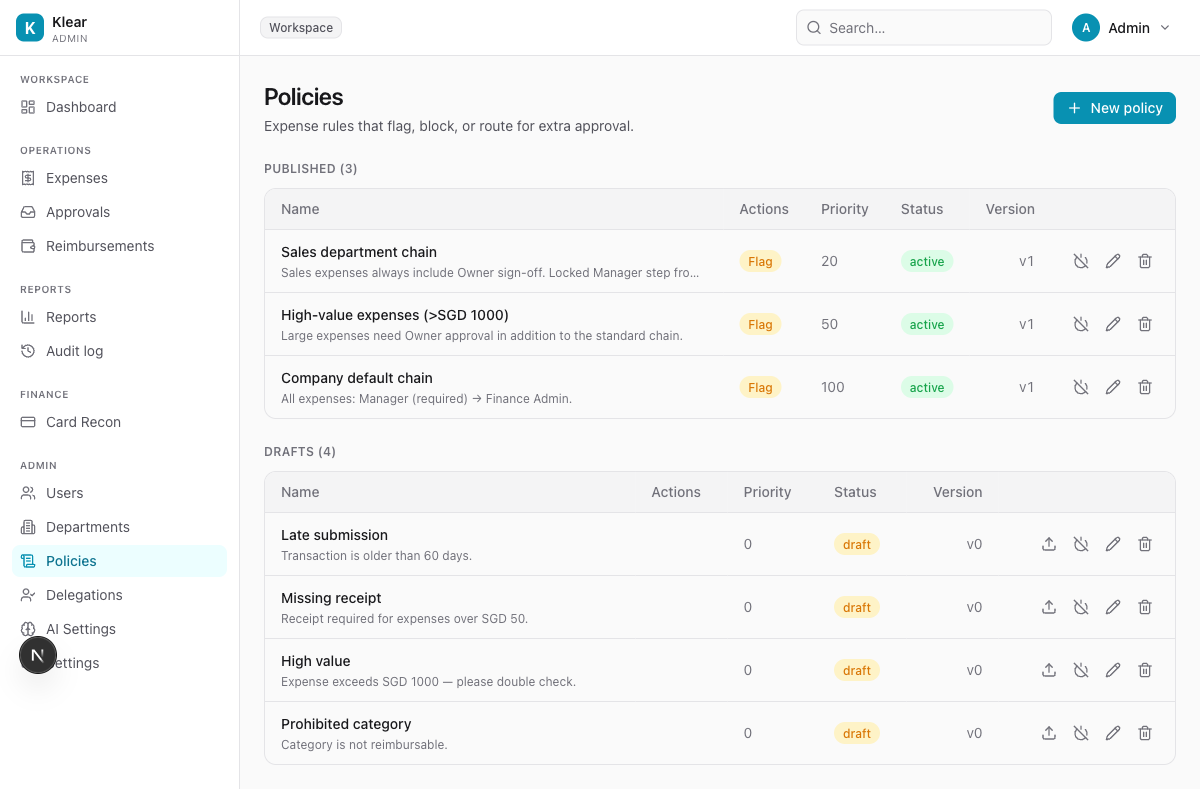
Policies have two states:
- Draft — being built, not yet applied to any expense
- Active (Published) — evaluated against every expense submission in real time
Create a policy
Click + New policy to open the policy builder.
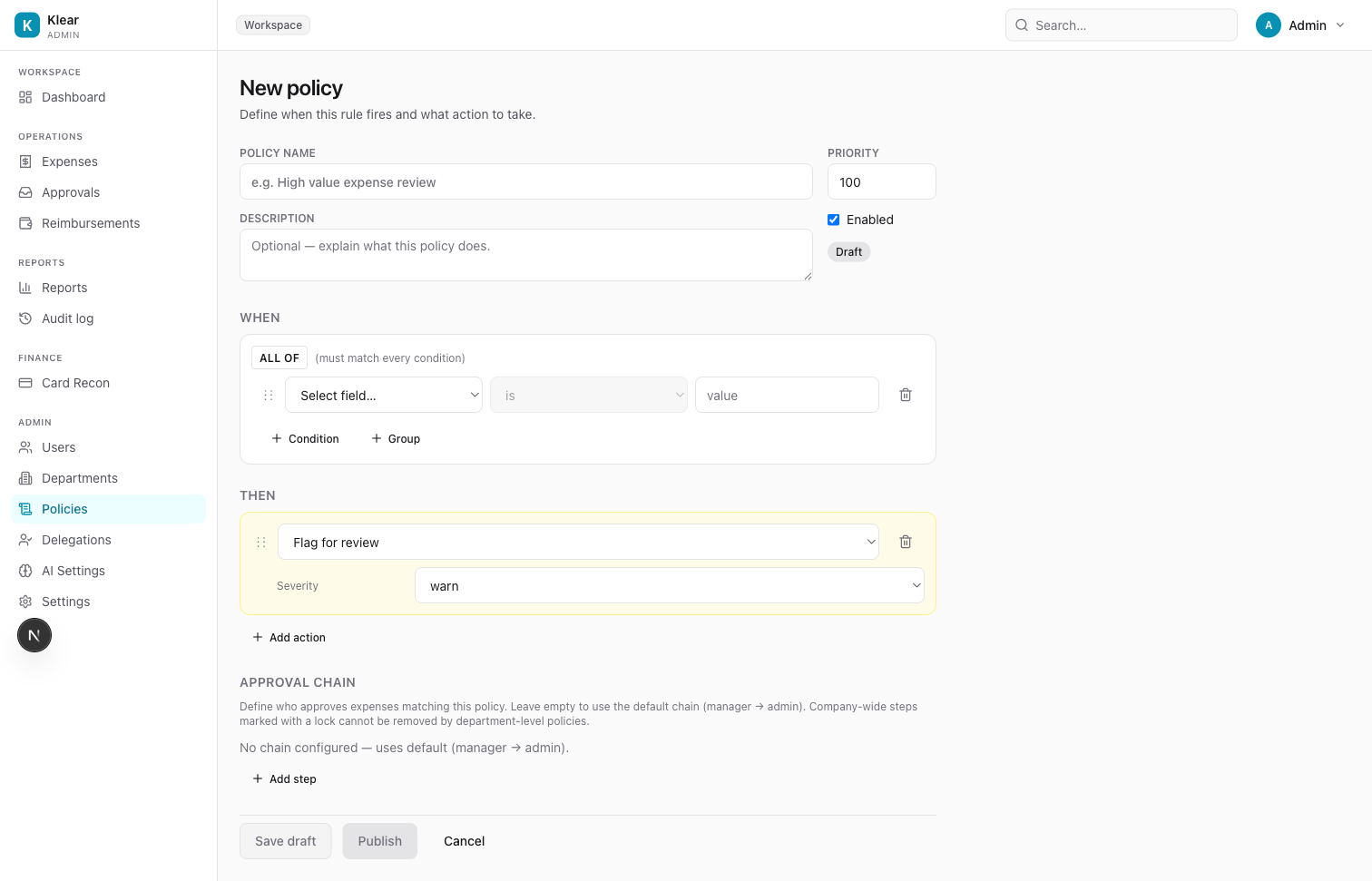
Step 0 — Policy type
At the top of the builder, choose the policy type:
| Type | Use for |
|---|---|
| Expense Policy | Rules and approval chains for individual expenses or expense reports |
| Per Diem Policy | Daily allowance rates for travel destinations |
Selecting Per Diem Policy replaces the WHEN/THEN condition builder with per diem rate fields. See Per Diem Policies for full details.
The rest of this page covers Expense Policy configuration.
Step 1 — Name and priority
| Field | Notes |
|---|---|
| Policy name | Descriptive name shown in the policies list and on flagged expenses |
| Description | Optional — helps your team understand the intent of the rule |
| Priority | Higher number = evaluated first. When multiple policies match, the one with the highest priority runs first. Default is 100. |
| Enabled | Uncheck to save as disabled even when published |
Step 2 — WHEN (conditions)
The WHEN section defines when this policy fires. You can add multiple conditions combined with ALL OF (every condition must match) or ANY OF (at least one must match). Toggle between them by clicking the ALL OF button.
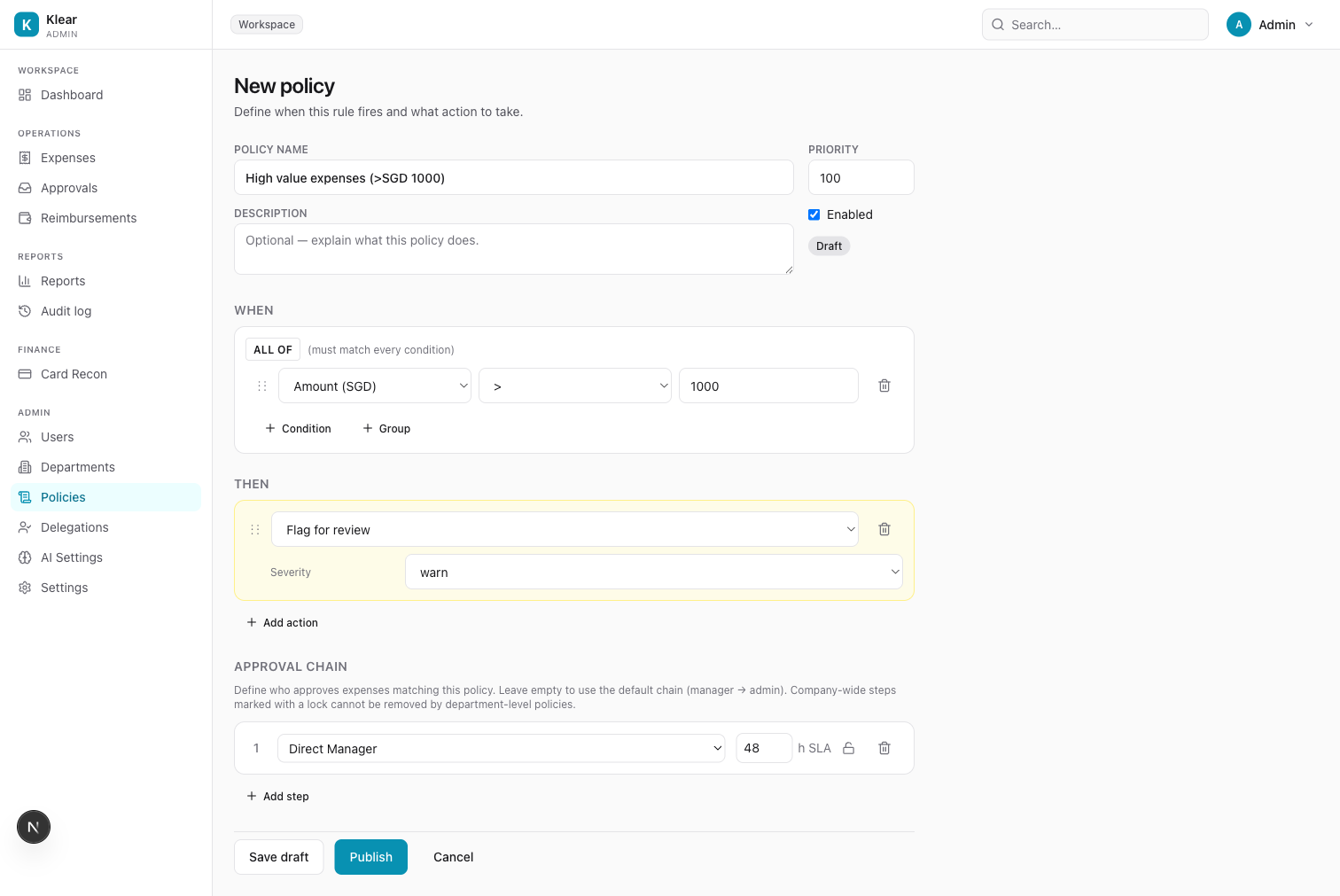
Click + Condition to add a rule. Each condition has three parts:
Field — what to evaluate:
| Field | Description |
|---|---|
| Amount (SGD) | Converted SGD value of the expense |
| Amount (original currency) | Value in the submitted currency |
| Category | Expense category (Meals, Travel, Software, etc.) |
| Has receipt | Whether a receipt file is attached |
| Transaction age (days) | How many days since the transaction date |
| Merchant | Merchant name string match |
| Submitter department | Which department the submitter belongs to |
| GST Code | The assigned GST tax code |
| Currency | Submitted currency code |
| Transaction on weekend | Boolean — was the transaction on a Saturday or Sunday |
| Report total (SGD) | Total SGD value of the entire expense report. Use this to set approval chains based on report size rather than individual expense amounts. |
Use Report total (SGD) to build tiered approval chains for expense reports. For example:
report_total < 5,000→ Direct Manager onlyreport_total ≥ 5,000→ Direct Manager + Finance Adminreport_total ≥ 20,000→ Direct Manager + Finance Admin + Company Owner
When an employee submits an expense report, Klear evaluates the report total against all active expense policies and applies the approval chain from the highest-priority matching policy.
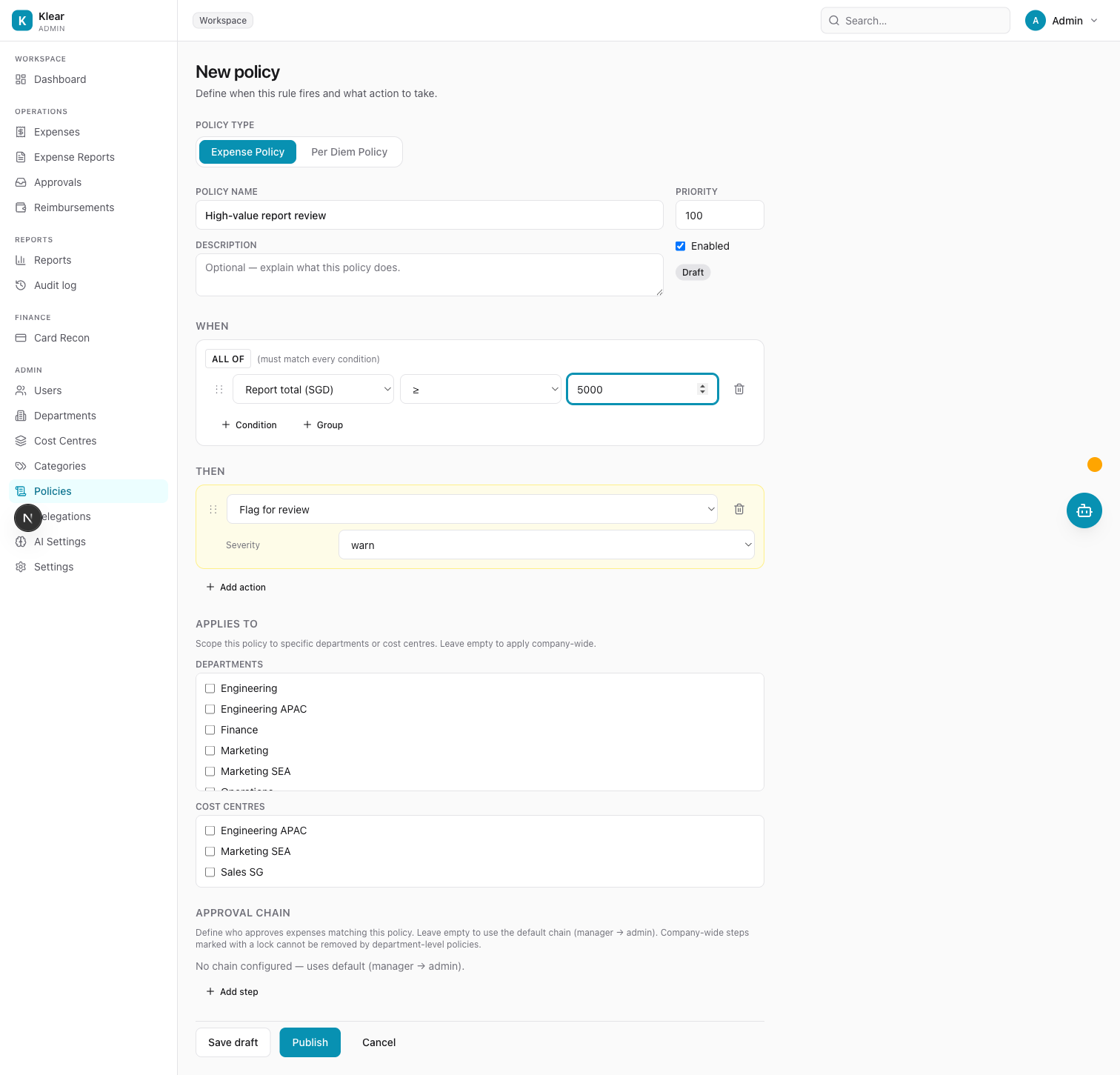
Operator — is, is not, >, ≥, <, ≤ (available operators depend on the field type)
Value — the threshold or match value
You can also click + Group to create nested condition groups for complex logic (e.g. "amount > 500 AND (category is Travel OR category is Client Entertainment)").
Step 3 — THEN (actions)
The THEN section defines what happens when the conditions match. You can add multiple actions.
| Action | Effect |
|---|---|
| Flag for review | Warning shown to the submitter. Expense can still be submitted. Approvers see the flag. Severity: info, warn |
| Block submission | Hard block — the submitter cannot submit until the issue is resolved |
| Auto-reject | Automatically rejects the expense without human review |
| Require extra approval | Adds additional approval steps on top of the base chain |
| Require justification | Forces the submitter to enter a written justification before submitting |
Click + Add action to layer multiple actions on one policy.
Step 4 — Approval Chain
The Approval Chain section defines who approves expenses that match this policy. Leave it empty to fall back to the default chain (Direct Manager → Finance Admin).
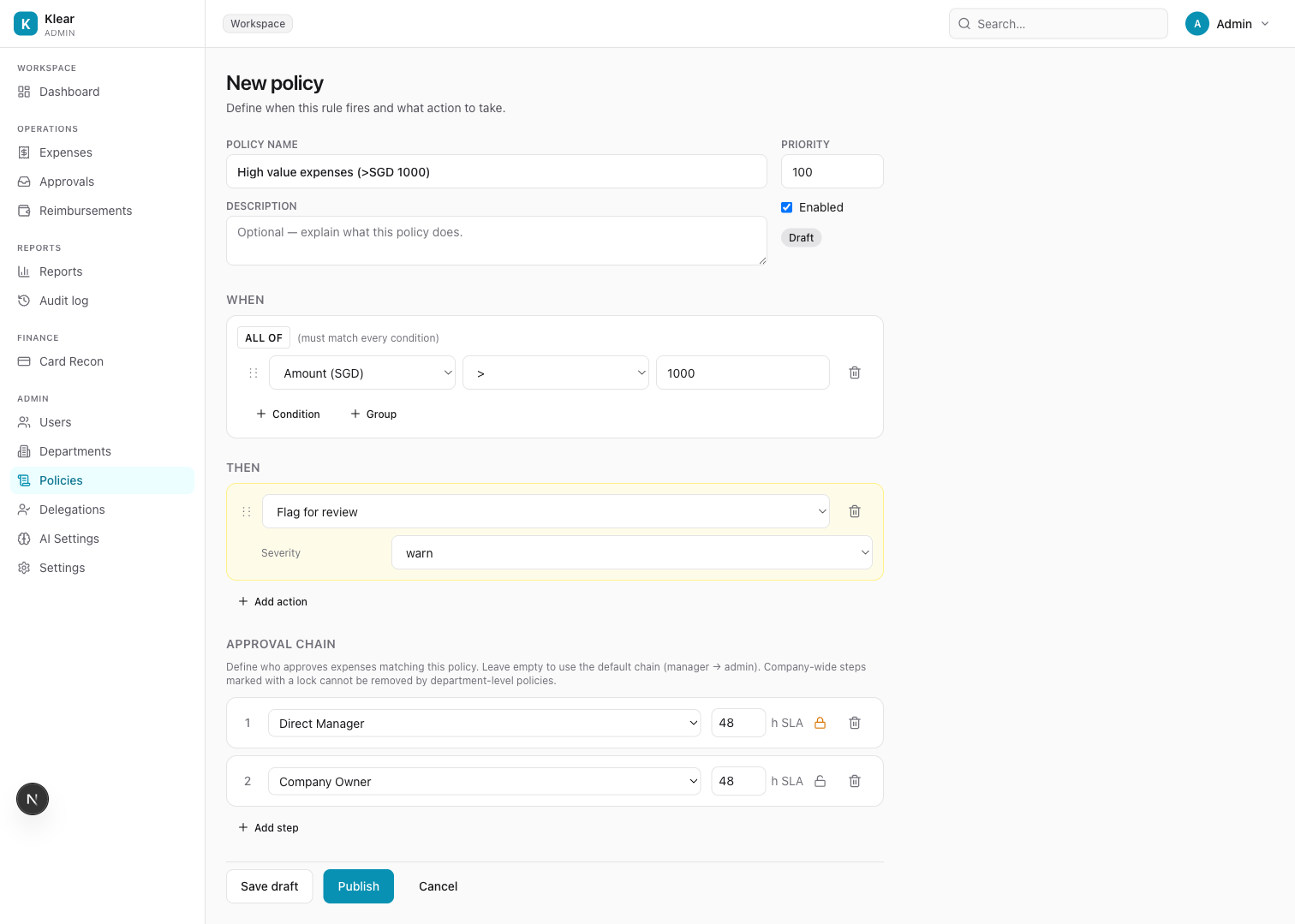
Click + Add step to add an approver step.
Each step has:
| Setting | Options | Notes |
|---|---|---|
| Role | Direct Manager, Finance Admin, Company Owner | Who must approve at this step |
| SLA hours | Any number | How many hours the approver has before the system escalates. Default 48h. |
| Lock | Locked / Unlocked | Locked steps cannot be removed or reordered by department-level policies. Use this for mandatory company-wide sign-offs. |
Steps are evaluated in order — step 1 must approve before step 2 is notified.
Company-wide policies and department-scoped policies work together. A department policy can add its own steps, but any locked steps from the company-wide chain are always enforced and cannot be removed.
Step 5 — Save or Publish
| Button | What it does |
|---|---|
| Save draft | Saves without activating. Policy is not applied to any expenses. |
| Publish | Activates the policy immediately. It will be evaluated on the next expense submission. |
Edit an existing policy
From the Policies list, click the pencil icon on any policy row. The same builder opens pre-filled with the current configuration.
Editing an active (published) policy creates a new version. The previous version is preserved in the audit trail.
Disable a policy temporarily
Click the toggle icon (pause icon) on a policy row to disable it without deleting. Re-enable at any time by clicking again.
Delete a policy
Click the trash icon on the policy row. Deleted policies are removed immediately. The audit trail retains a record of the deletion.
Built-in policy templates (seeded on every workspace)
| Template | Condition | Action |
|---|---|---|
| Late submission | Transaction age > 60 days | Hard block |
| Missing receipt | Amount > SGD 50 AND no receipt | Hard block |
| High value alert | Amount > SGD 1,000 | Soft flag (warn) |
| Prohibited category | Category is Alcohol or Gambling | Hard block |
| Company default chain | All expenses | Routes: Manager → Finance Admin |
Applies-to scoping
In the policy builder, the Applies to section lets you restrict a policy to:
- Specific departments — only fires for expenses from users in those departments
- Specific cost centres — only fires for expenses from users assigned to those cost centres
Leave both blank to apply the policy company-wide to all expenses and all users.
When a policy is scoped to a cost centre, its approval chain takes priority over any department-level chain for users in that cost centre. See Cost Centres for details.